Promotion slides that move, with prices that stay true
Build your home page's offer slide on a free canvas, with the price, code and countdown read from the real offer. Or tell PEPTO what you are promoting, and it designs and animates the slide for you.
How it works
Choose a step to see the product in action.
Step 1: Start from a template that already moves
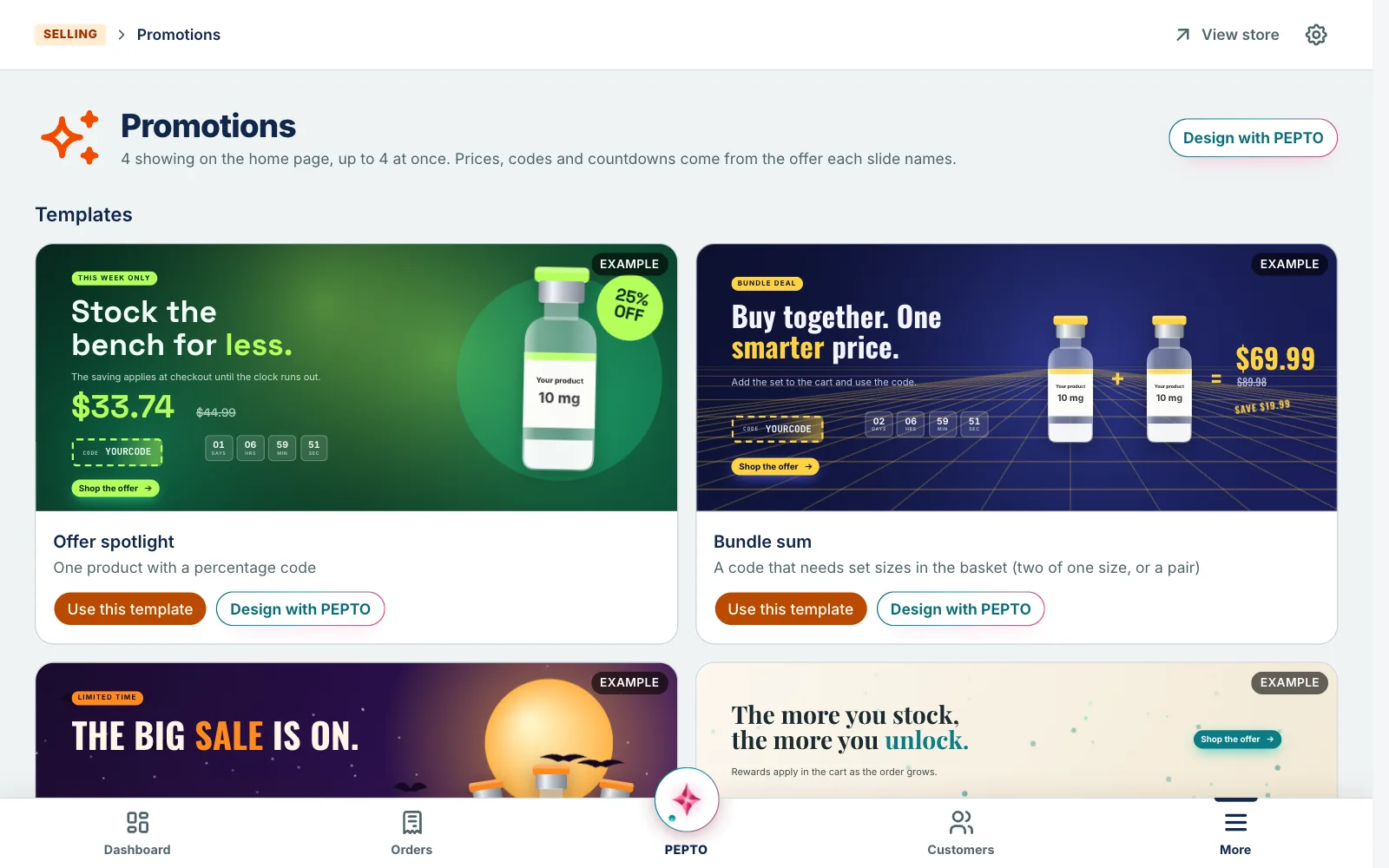
Open Promotions in your lab admin and five templates are playing as examples: a spotlight on one product, a bundle sum, a full takeover, a reward ladder and a new arrival. Use one and it opens in the editor on an offer your store already has. Or press Design with PEPTO, say what you are promoting, and PEPTO builds the slide.
Step 2: A free canvas, not a form
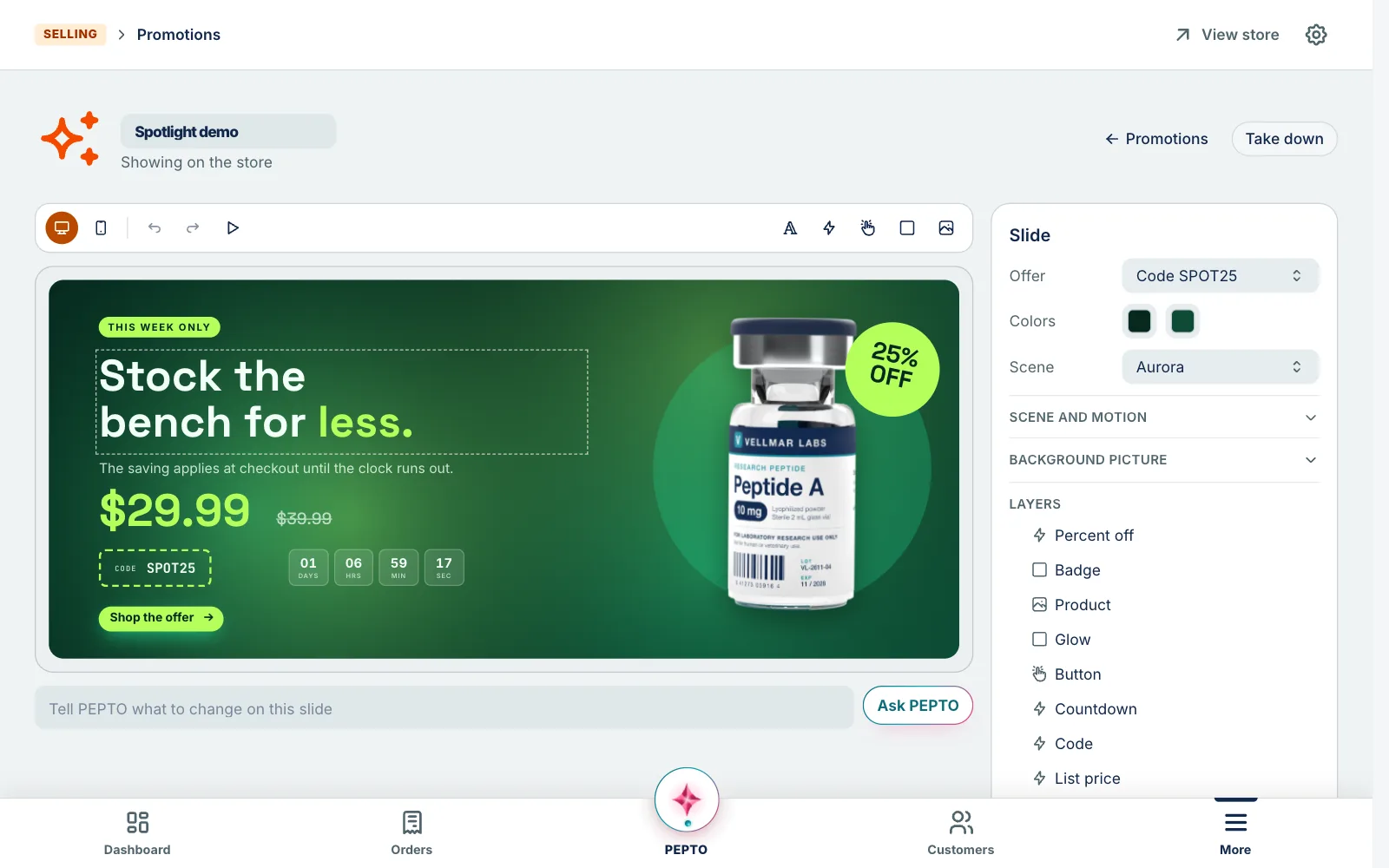
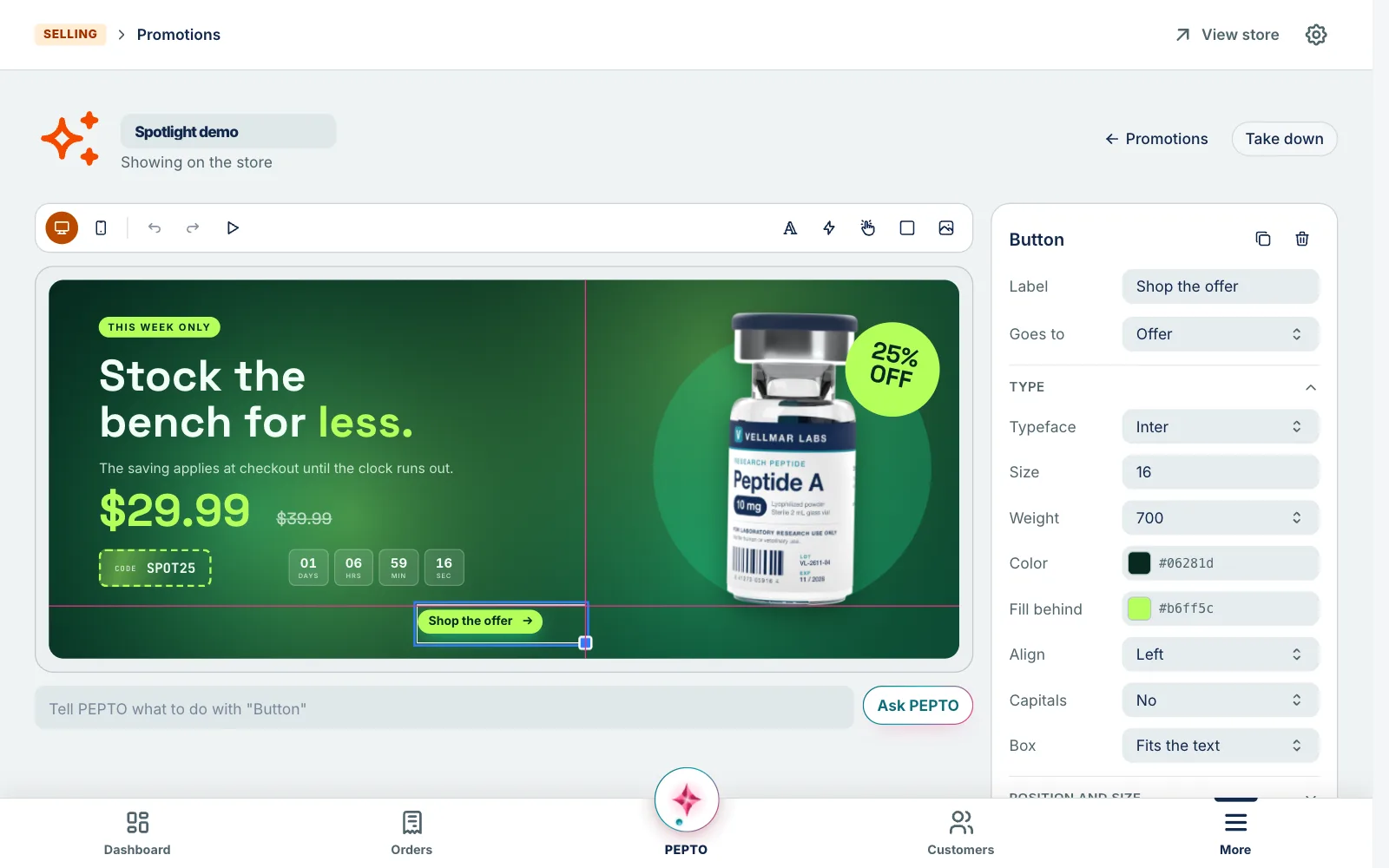
Add text, live figures, buttons, shapes and pictures from the toolbar, then drag and resize them where you want. Elements snap to each other and to the middle of the slide, with guides showing the line they took.
Step 3: Prices, codes and countdowns that cannot drift
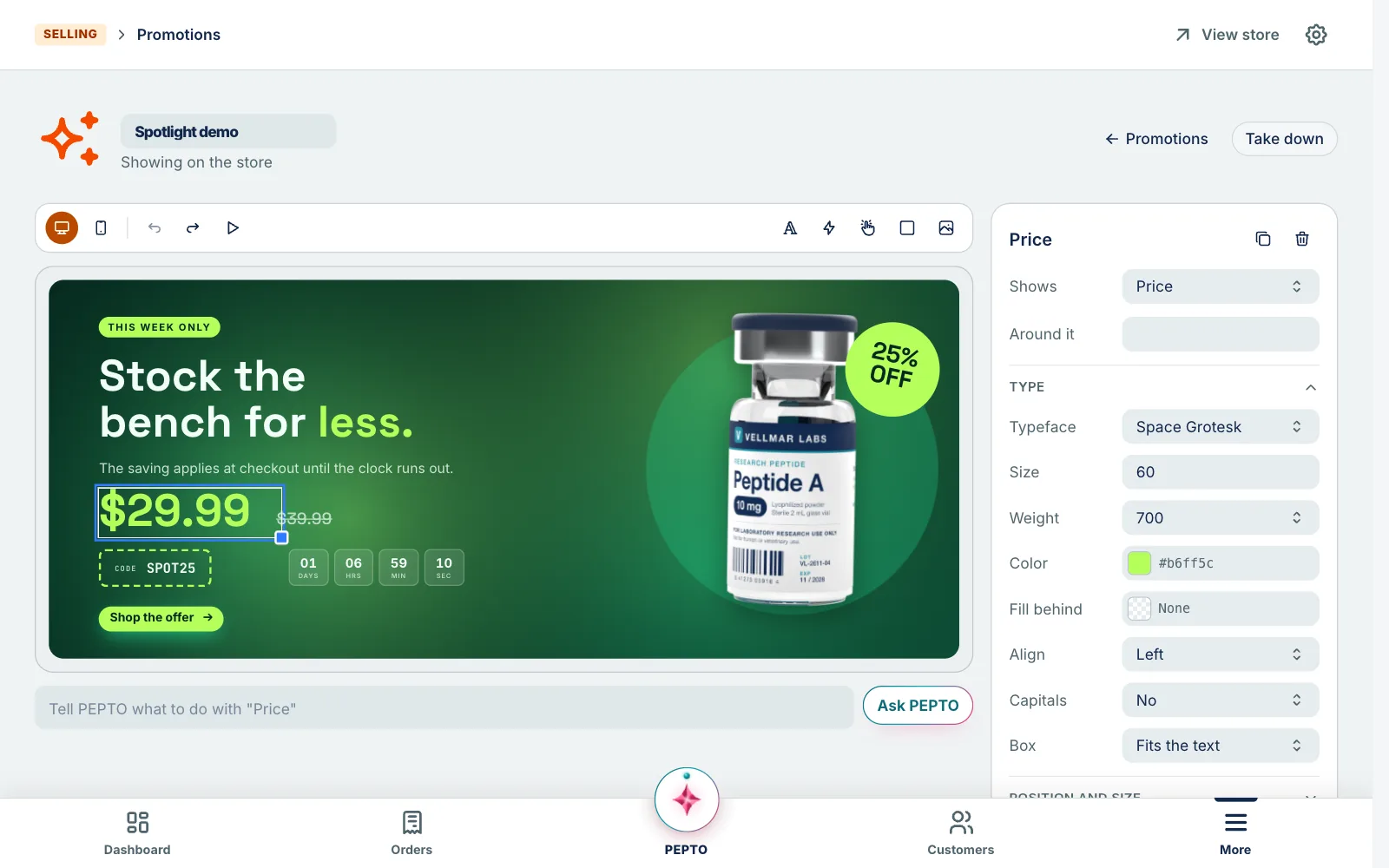
A live figure shows a fact from the slide's offer: what it costs now, the list price, the saving, the code, the time left. Your store fills them in with the same arithmetic as the cart, so a price on a slide is always the price at checkout.
Step 4: Your brand colors and your product photos
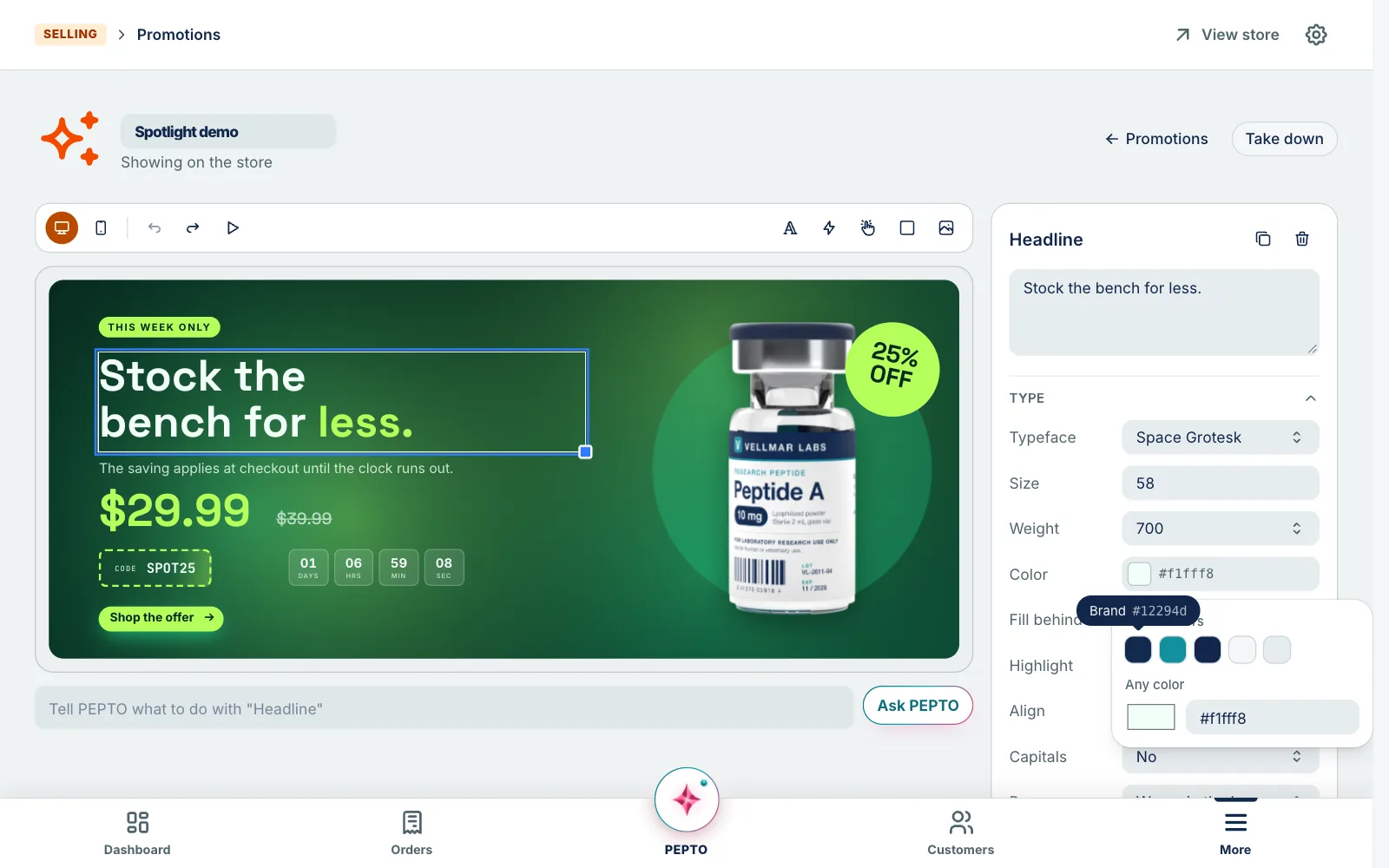
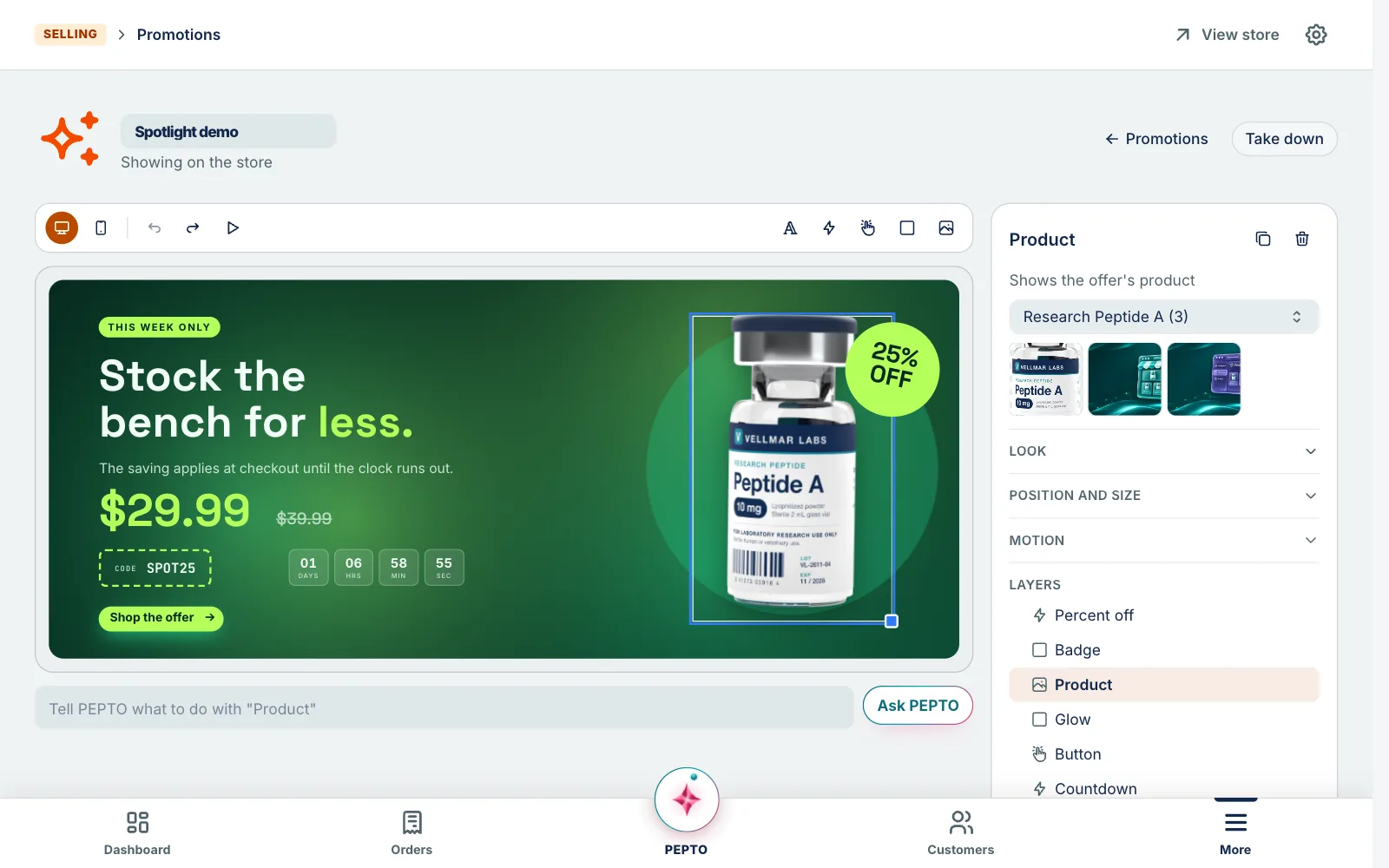
Every color picker lists your store's own colors first, then any color you like. A picture can be any photo of the product you are promoting, one you upload for the slide, or one PEPTO makes for it.
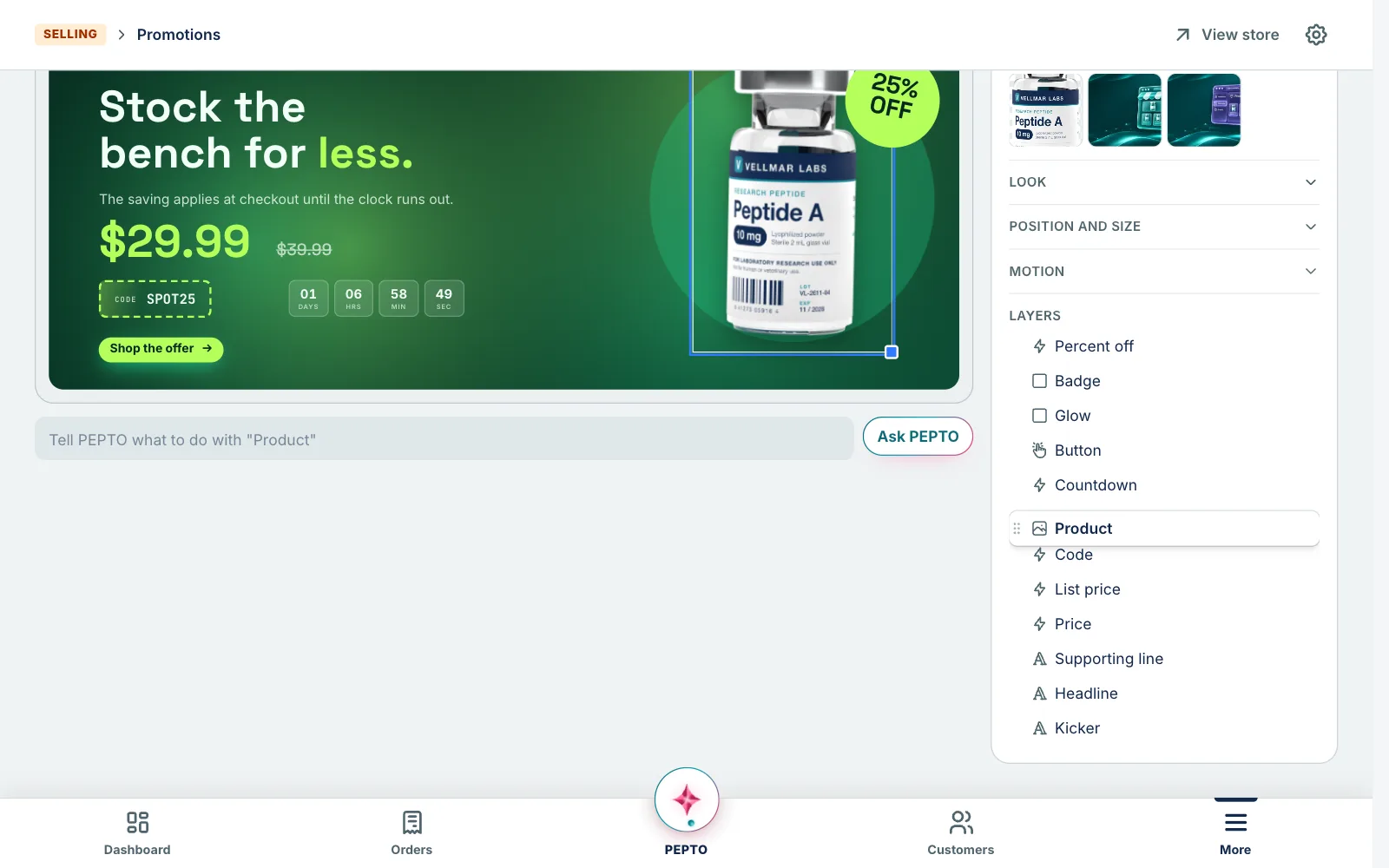
Step 5: Layers, undo and redo
Drag a layer to reorder it, or send it to the front or the back in one click. Every change, yours or PEPTO's, can be undone and redone while you work.
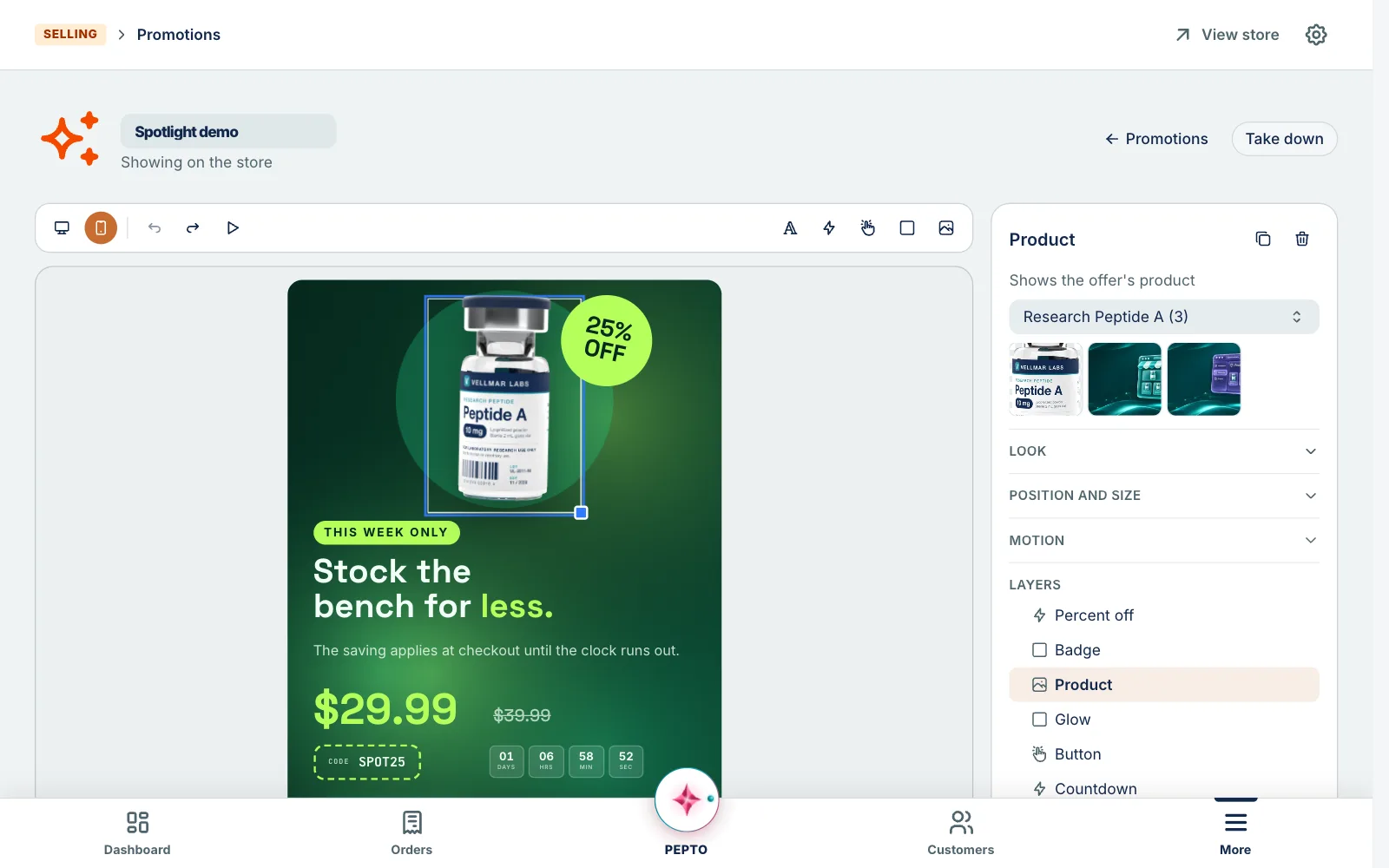
Step 6: A layout of its own for phones
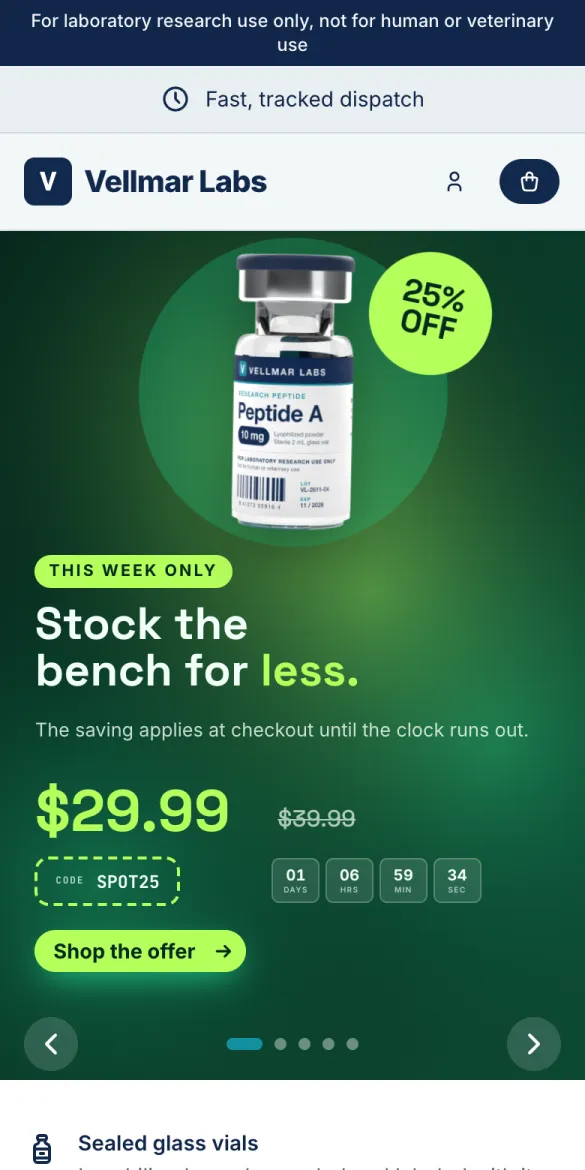
Switch to the phone artboard and arrange the same slide for a narrow screen. Shoppers on a phone get that layout, not a shrunken desktop one.
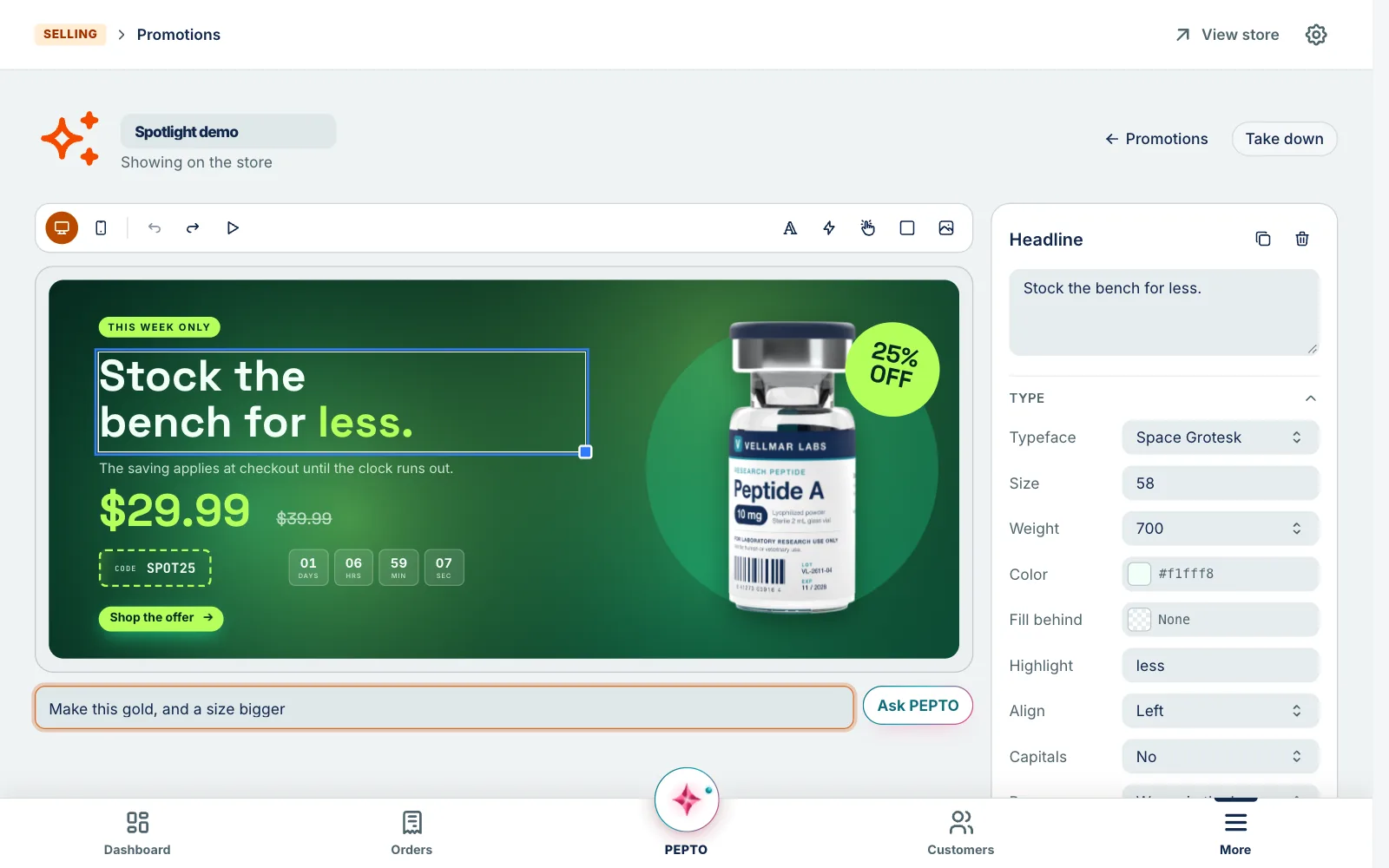
Step 7: Or have PEPTO change it, and animate it
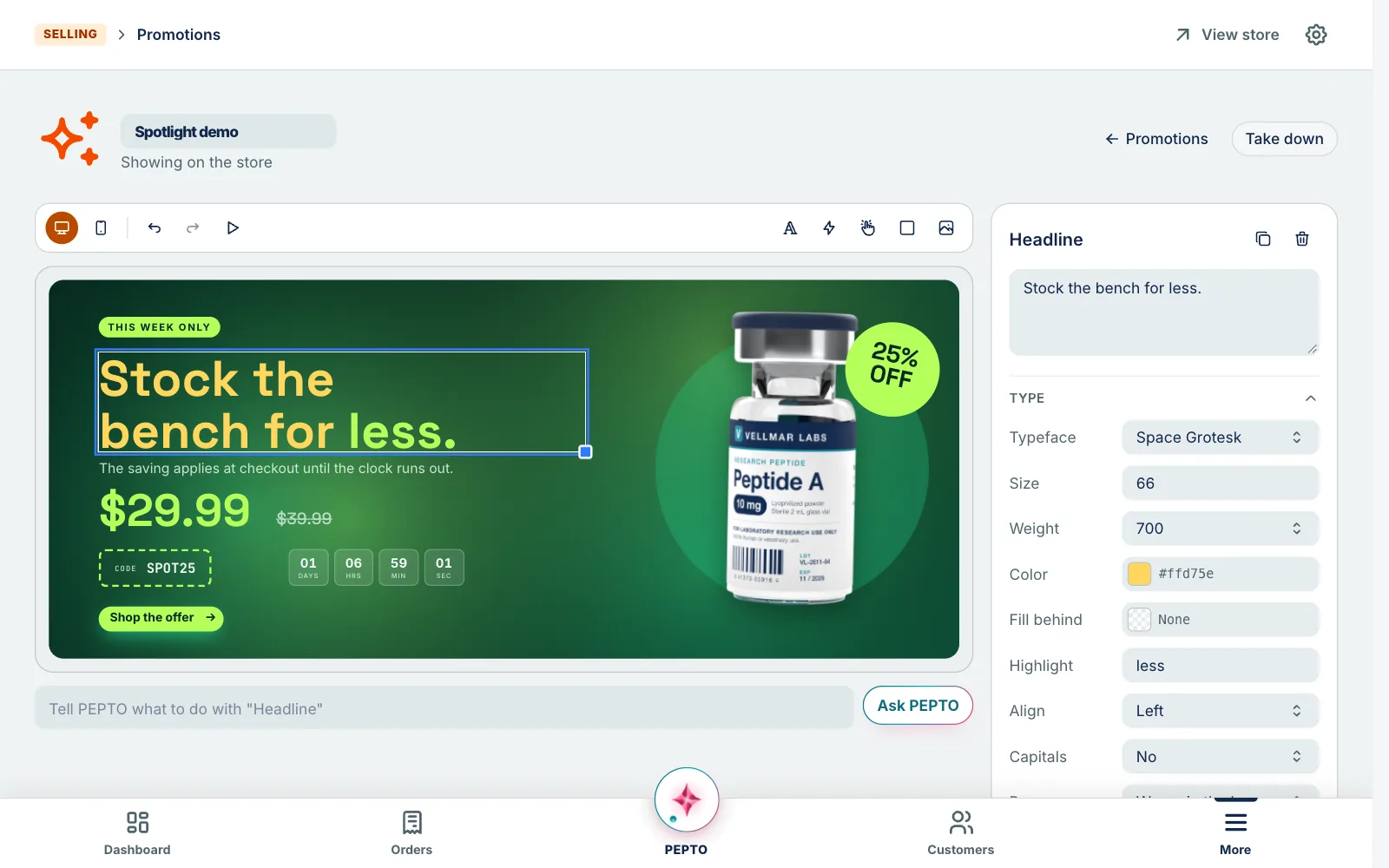
Select an element and say what you want: make this gold, a size bigger, have it slam in, keep the badge pulsing. PEPTO knows the slide and the element you selected, changes it on the canvas, and sets the motion for you. If you do not like it, Undo puts it back.
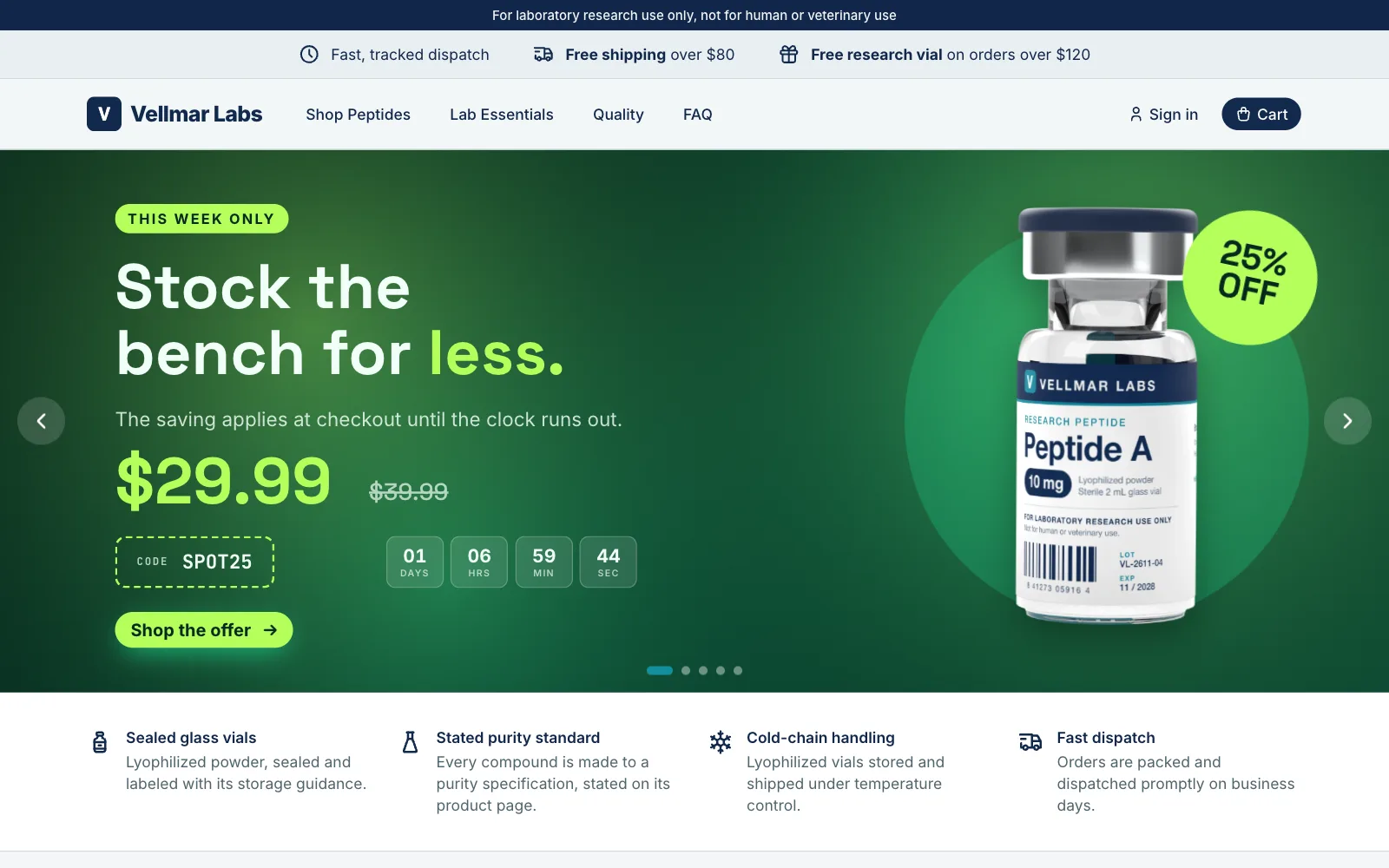
Step 8: Live on your home page, gone when the offer ends
Put the slide live and it leads your home page, on desktop and phone, with its button going straight to the offer. When the code expires the slide steps down without you.
Start from a template that already moves
Open Promotions in your lab admin and five templates are playing as examples: a spotlight on one product, a bundle sum, a full takeover, a reward ladder and a new arrival. Use one and it opens in the editor on an offer your store already has. Or press Design with PEPTO, say what you are promoting, and PEPTO builds the slide.
A free canvas, not a form
Add text, live figures, buttons, shapes and pictures from the toolbar, then drag and resize them where you want. Elements snap to each other and to the middle of the slide, with guides showing the line they took.
Prices, codes and countdowns that cannot drift
A live figure shows a fact from the slide's offer: what it costs now, the list price, the saving, the code, the time left. Your store fills them in with the same arithmetic as the cart, so a price on a slide is always the price at checkout.
Your brand colors and your product photos
Every color picker lists your store's own colors first, then any color you like. A picture can be any photo of the product you are promoting, one you upload for the slide, or one PEPTO makes for it.
Layers, undo and redo
Drag a layer to reorder it, or send it to the front or the back in one click. Every change, yours or PEPTO's, can be undone and redone while you work.
A layout of its own for phones
Switch to the phone artboard and arrange the same slide for a narrow screen. Shoppers on a phone get that layout, not a shrunken desktop one.
Or have PEPTO change it, and animate it
Select an element and say what you want: make this gold, a size bigger, have it slam in, keep the badge pulsing. PEPTO knows the slide and the element you selected, changes it on the canvas, and sets the motion for you. If you do not like it, Undo puts it back.
Live on your home page, gone when the offer ends
Put the slide live and it leads your home page, on desktop and phone, with its button going straight to the offer. When the code expires the slide steps down without you.
What it does
Five templates to start from
Offer spotlight, Bundle sum, Takeover, Reward ladder and New arrival, each playing as a live example in your admin. Use one and it opens in the editor, pointed at a code or product your store already has.
Motion built in
Six animated scenes behind the slide (aurora, embers, night, grid, orbits and snow), seven entrances from rise and glide to slam and pop, and loops that keep a badge or a product floating, pulsing or shimmering. Set them yourself or ask PEPTO. Shoppers who ask for reduced motion get the finished slide, still.
Figures from the real offer
Price, list price, saving, percent off, the code, a countdown, the product's name and size, and your basket reward tiers. Each is worked out with the same sums as the cart, so the slide and the checkout always agree.
Desktop and phone, laid out separately
Every element has its own place on a wide artboard and on a phone one. Move, resize or hide it on one without touching the other.
Up to four slides live
Put slides live and take them down with one button, and set their order. A slide whose offer has ended leaves the home page by itself, and a slide that cannot find its offer is never shown.
On every plan
Promotion slides come with every plan. The same slide can be copied into a campaign email as a block, with the offer's figures filled in.
Where AI helps
Drafts and readings you check. Nothing goes out until you press the button.
PEPTO designs the whole slide
Tell PEPTO what you are promoting and it composes the slide on the canvas: the layout, the words, the colors and the scene behind it, tied to the offer you named, for desktop and phone. It can make a background or a picture for that slide alone, kept apart from your product photos.
PEPTO animates it for you
Ask for motion in plain words: have the headline slam in, the price pop, the badge pulse, the product float, or the whole slide feel calmer or louder. PEPTO sets each element's entrance, its timing and its loop, and picks the scene, so you never touch a timeline.
Point at one element
Select a headline, a badge or a picture in the editor and open PEPTO: it already knows which slide and which element you mean. The change lands on the canvas, and Undo takes it back like any change of your own.
Claude, ChatGPT and Cursor too
Connect your store to an AI assistant over MCP and it reads, builds and edits slides with the same tools PEPTO uses. Putting a slide live always asks you first.
Try it on your own catalog
Your store is live on yourlab.my-pepts.store seconds after you name it, and selling from A to Z in about 20 minutes.